

About screen reader technology
Review Needed
A screen reader is software designed to navigate through a website and read the web content aloud. Visually impaired users often rely on this technology. You can create content designed for use with screen readers for Microsoft® Windows® platforms only. Users who view your content must have Adobe® Flash® Player 9 or later, and Internet Explorer on Windows 2000 or Windows XP or later.
JAWS, from Freedom Scientific, is one example of screen reader software. You can access the JAWS page on the Freedom Scientific website at www.hj.com/fs_products/software_jaws.asp. Another commonly used screen reader program is Window-Eyes, from GW Micro. To access the latest information on Window-Eyes, visit the GW Micro website at www.gwmicro.com.
Note: Flex support is most comprehensive in the JAWS screen reader. You must have JAWS version 6.10.1006 or later.
Screen readers help users understand what is contained in a web page or Flex application. Based on the keyboard shortcuts that you define, you can let users easily navigate through your application by using the screen reader.
Because different screen reader applications use various methods to translate information into speech, your content will vary in how it's presented to each user. As you design accessible applications, keep in mind that you have no control over how a screen reader behaves. You can only mark up the content in your applications so that you expose the text and ensure that screen reader users can activate the controls. This means that you can decide which objects in the application are exposed to screen readers, provide descriptions for the objects, and decide the order in which the objects are exposed to screen readers. However, you cannot force screen readers to read specific text at specific times or control the manner in which that content is read.
To use a JAWS screen reader with a Flex application, users must download a set of scripts before invoking the Flex application. For more information, see Configuring a JAWS screen reader for Flex applications.
Flash Player and Microsoft Active Accessibility
Adobe Flash Player uses Microsoft Active Accessibility (MSAA), which provides a descriptive and standardized way for applications and screen readers to communicate. MSAA is available for Windows operating systems only. For more information on Microsoft Accessibility Technology, visit the Microsoft Accessibility website at http://msdn.microsoft.com/en-us/library/ms697707(VS.85).aspx.
The Windows ActiveX (Internet Explorer plug-in) version of Flash Player 9 and the Windows Netscape (Firefox plug-in) version 9.0.115.0 and higher support MSAA, but earlier versions of the Windows Netscape plug-in and all versions of Windows stand-alone players currently do not.
Flex supports a debugger version of Flash Player that can display debugging information during run time and generate profiling information so that you can more easily develop applications. However, the debugger version of Flash Player does not support accessibility.
Important: MSAA is currently not supported in the opaque windowless and transparent windowless modes. (These modes are options in the HTML Publish Settings panel, available for use with the Windows version of Internet Explorer 4.0 or later, with the Flash ActiveX control.) If your content must be accessible to screen readers, avoid using these modes.
How MSAA Works
MSAA is essentially a middleware architecture that conveys an object model of an application. This is most easily explained by an example.
Here is an HTML form displayed in a browser:
Here is a screen capture that shows the object tree exposed by the browser to assistive technology:

And finally, here is how JAWS for Windows 9.0, a popular screen reader for Windows, reads this form after loading the page in Internet Explorer:
        Simple HTML Form.
        Choose one or more children:
        Extended select list box:
        Avery, one of four.
        Submit Button.
We've only scratched the surface with this example. A screen reader is a very complicated program that does much more than just anounce page contents; it speaks words under the mouse cursor, provides hundreds of keyboard shortcuts, and keeps track of user state in myriad ways.
What's Really Going On?
When Internet Explorer or Firefox loads a new page, it sends an event notification to the MSAA system. A screen reader, as an MSAA client, has registered with MSAA to receive event notifications, so the screen reader becomes aware that the browser has changed its object tree.
The screen reader sends a special window message (WM_GETOBJECT) to the browser, asking
for its root object. The browser responds by sending back a pointer to a COM interface of type IAccessible.
This interface has a bunch of methods that allow the screen reader to ask for object
properties, such as type, name, description, value, and visibility. IAccessible also has methods for traversing the object tree in various ways—abstractly, in terms of
tab order, in terms of geometric relationship, or in terms of pixel locations. Finally, IAccessible allows clients to manipulate UI objects programmatically,
pressing buttons and altering selection and focus.
The screen reader now traverses the tree of IAccessible objects, building up a tree of COM pointers. For each object discovered, the screen reader determines the type of object (container? button? textfield?, etc.), the object's name, and possibly a few other properties. The screen reader now has enough information to construct its narrative text and feed it into the text-to-speech engine.
The browser, in order to be a proper MSAA server, has two main responsibilities. It must implement the IAccessible interface for every significant onscreen object that it displays, and it must notify the MSAA system whenever any part of the object tree changes. The Flash Player handles these two responsibilities for Flash content.
The Flash Player's Accessible Object Model
The Flash Player's accessible object tree consists of a single top-level container (the root accessible object) containing a flat collection of the following types of objects:
-
Text. Regions of dynamic or static text in the movie. The principal property of a text object is its name, which, in keeping with MSAA convention, is equal to the contents of the text string being displayed. A text object may also have an associated description string. The Flash Player also makes an attempt to deduce labeling relationships between text and input text fields (text immediately above or to the left of an input text field is be taken as a label for that field), and between text and buttons (text entirely inside a button will be taken as a label for that button). Any text that is deduced to be a label will be omitted from the accessible object tree, and the content of that text will be used as the name of the object that it labels. Labels are never assigned to buttons or text fields that have author-supplied names.
-
Input text fields. An input text object has a value, and optionally a name, a description string and a keyboard shortcut string. As described above, an input text object's name may come from a text object that is deduced to label it.
-
Buttons. A button object has a state (pressed or not pressed), supports a programmatic default action that causes the button to depress momentarily, and may optionally have a name, a description string, and a keyboard shortcut string. As described above, a button object's name may come from a text object that is deduced to label it. Movie clips used as buttons in Flash will be described by the player to MSAA as buttons, not as movie clips. The child objects inside buttons are note normally looked at by the player for accessibility purposes—buttons are "leaves" in the accessible object tree. There is one exception: for buttons that do not have author-supplied names, the player will look through the button's child elements (just one child-level deep) for a text element—if one is found, it is taken as a label for the button.
-
Simple movie clips. All non-scripted movie clips at all levels are classified into one of two categories: simple or non-simple. A movie clip is simple if it does not have any other accessible objects (text, input text, buttons, or components) as children at any level of depth. Non-simple clips are not given any representation in the object tree; instead, their accessible-object contents are promoted into the flat top-level list of accessible objects. Simple clips, on the other hand, do show up in the object tree, expressed to MSAA as an image or animation widget. If a simple clip contains other simple clips, only the topmost simple clip is included in the object tree. A simple clip has a state (animated or not animated), and may optionally have a name and a description string. Note that all video regions are also treated as simple movie clips.
-
Scripted movie clips. Flex and Flash UI components present a special problem for the Flash Player's accessible object model: they are movie clips or sprites built from collections of text, input text, shapes, and buttons, but if Flash Player were to expose those individual objects to MSAA, the meaning of the overall component will be lost. For this reason, a Flex or Flash UI component may require a custom accessibility implementation. A movie clip or sprite that provides its own accessibility implementation is called a scripted movie clip, and it appears in the accessible object tree. The details of the accessibility implementation depend on the kind of component being implemented and are up to the component developer.
The Flash Player provides the flash.accessibility.AccessibilityImplementation class as a base class for creating custom accessibility implementations for Flex and Flash UI components in ActionScript 3. In Flex, this class is extended by mx.accessibility.AccImpl which serves as the base class for accessibility implementations in Flex components. A new accessibility implementation can be created by extending mx.accessibility.AccImpl for each new component.
When a Flex project is compiled with Generate accessible SWF file set to true, the Flex compiler automatically enables accessibility implementations for the components in the project that have them. At runtime, when the Flash Player discovers a component that has a custom accessibility implementation, it will treat that component as a scripted movie clip.
The following example shows a simple Flex form.
When the project is compiled with Generate accessible SWF file set to false,
the object tree exposed by the browser to assistive technology contains only text and simple movie clips.
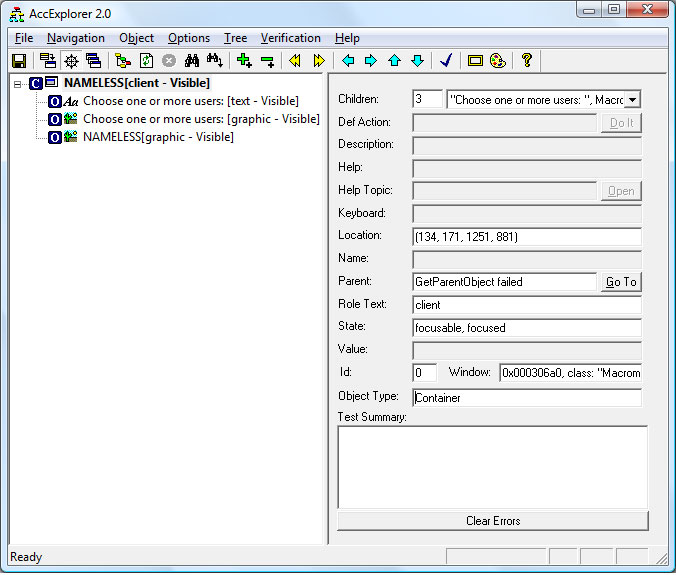
When the same project is compiled with Generate accessible SWF file set to
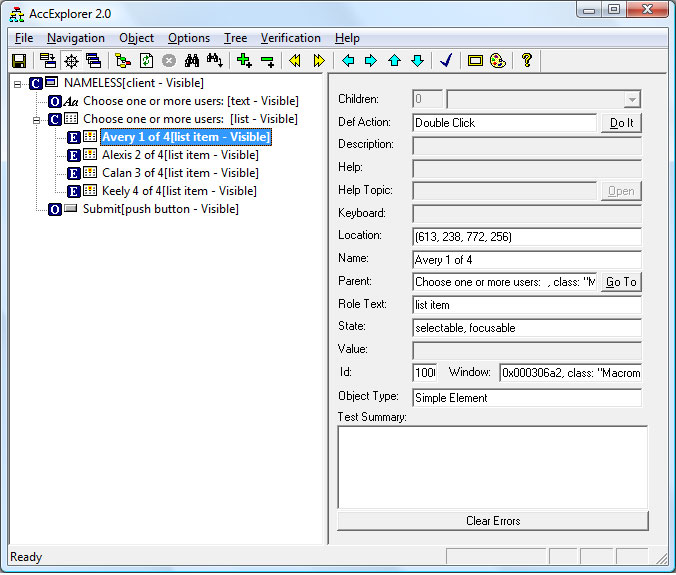
The methods of the flash.accessibility.AccessibilityImplementation class are a subset of the
IAccessible interface, adapted slightly to make life easier. The Flash Player's IAccessible interface
for a scripted movie clip simply passes most calls from MSAA through to the
flash.accessibility.AccessibilityImplementation subclass instance for that component. For example, when a screen reader needs to determine the default action of a mx.controls.Button component instance on the Stage in the Flash Player, it calls the IAccessible method get_accDefaultAction on the IAccessible interface exposed by the Flash Player for that component instance. The request is passed through to the get_accDefaultAction() method of the mx.accessibility.ButtonAccImpl accessibility implementation class instance which returns the appropriate default action String for a button control which is “Press.”
The article Custom Accessibility Implementations explains in more detail how to build custom accessibility implementations for Flex components.